Organize library views, find records by their content + 2 more
Find and organize library views from one place
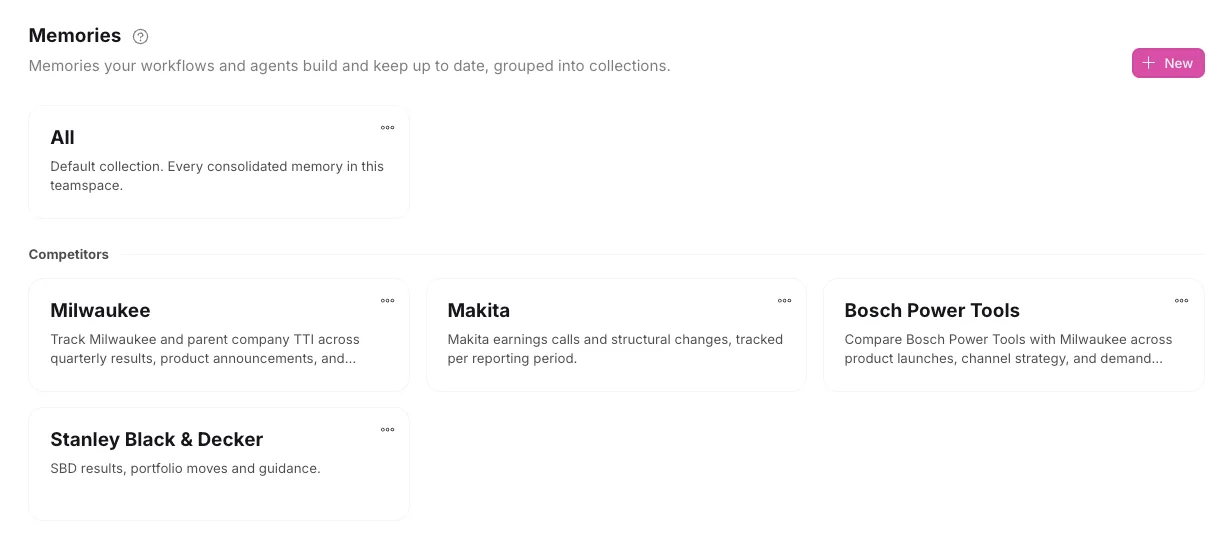
Memories, Records, Dashboards, and Consolidated Memories now each have a dedicated landing page where you can browse all available views without crowding the main navigation. Views are grouped into sections for easier scanning, and you can define a new view’s name, description, and focus before creating it, helping you start with a view that reflects what you need to explore.
How to use:
- Open the library for Memories, Records, Dashboards, or Consolidated Memories.
- Browse the available views or select New to create one.
- Enter the view’s name, description, and focus, then confirm your settings.
Recognize records at a glance and search their text
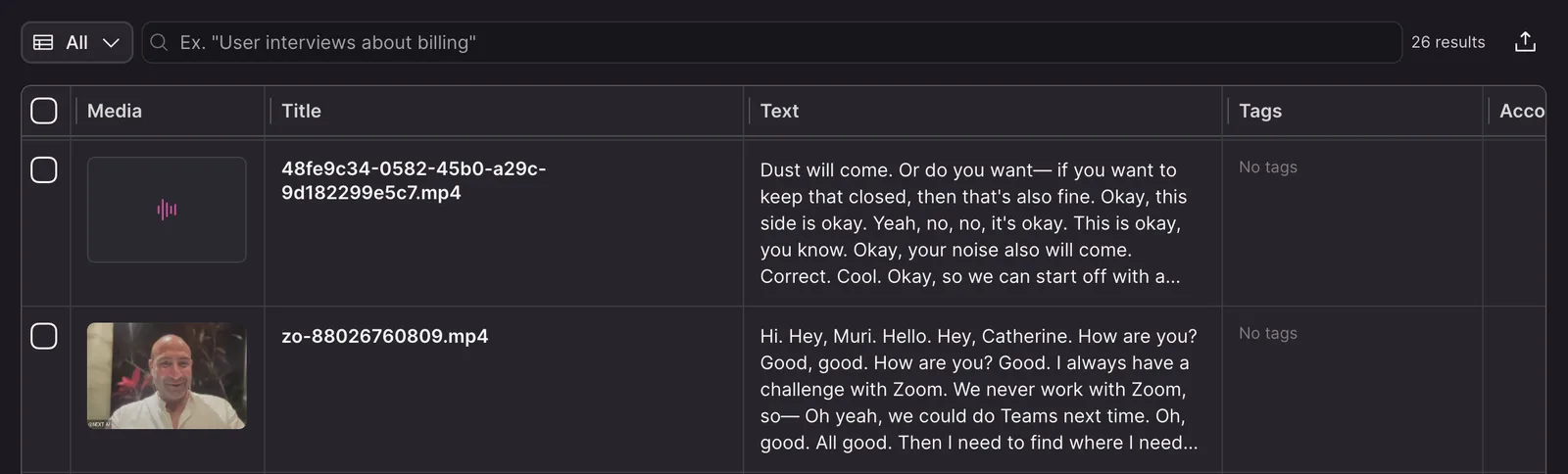
Records now show a short text preview in the Records table, so you can identify imported content without opening multiple records. Search now matches words in record titles and previews, helping you find a record when you remember a phrase from its contents; quoted phrase searches, filters, and result ordering continue to work as before. Previews respect redaction and contain up to about 300 characters.
How to use:
- Open Records.
- Review the text preview beneath each record title.
- Search for words or a quoted phrase from the record content to narrow the results.
Learn more about records.
Reuse workflows across teamspaces without rebuilding them
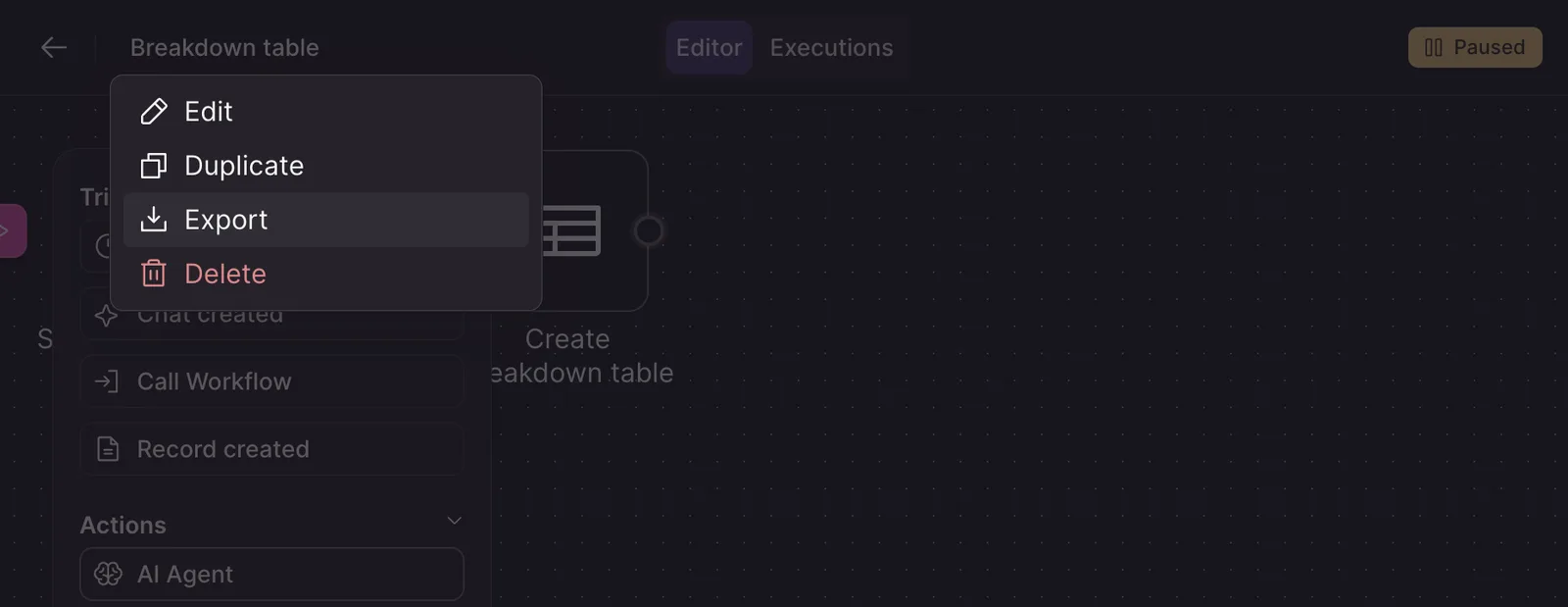
You can now export a workflow as a JSON file and import it into another teamspace, making it easier to share proven automations and replicate complex setups across projects. NEXT adapts teamspace-specific references during import and reuses matching dependencies, such as tags, or creates missing ones to preserve the workflow’s configuration.
How to use:
- Open the workflow you want to transfer and choose Export from its menu.
- Save the exported JSON file.
- In the destination teamspace, import the JSON file to create the workflow there.
Learn more about workflows.
Create smaller clusters when your analysis needs more detail
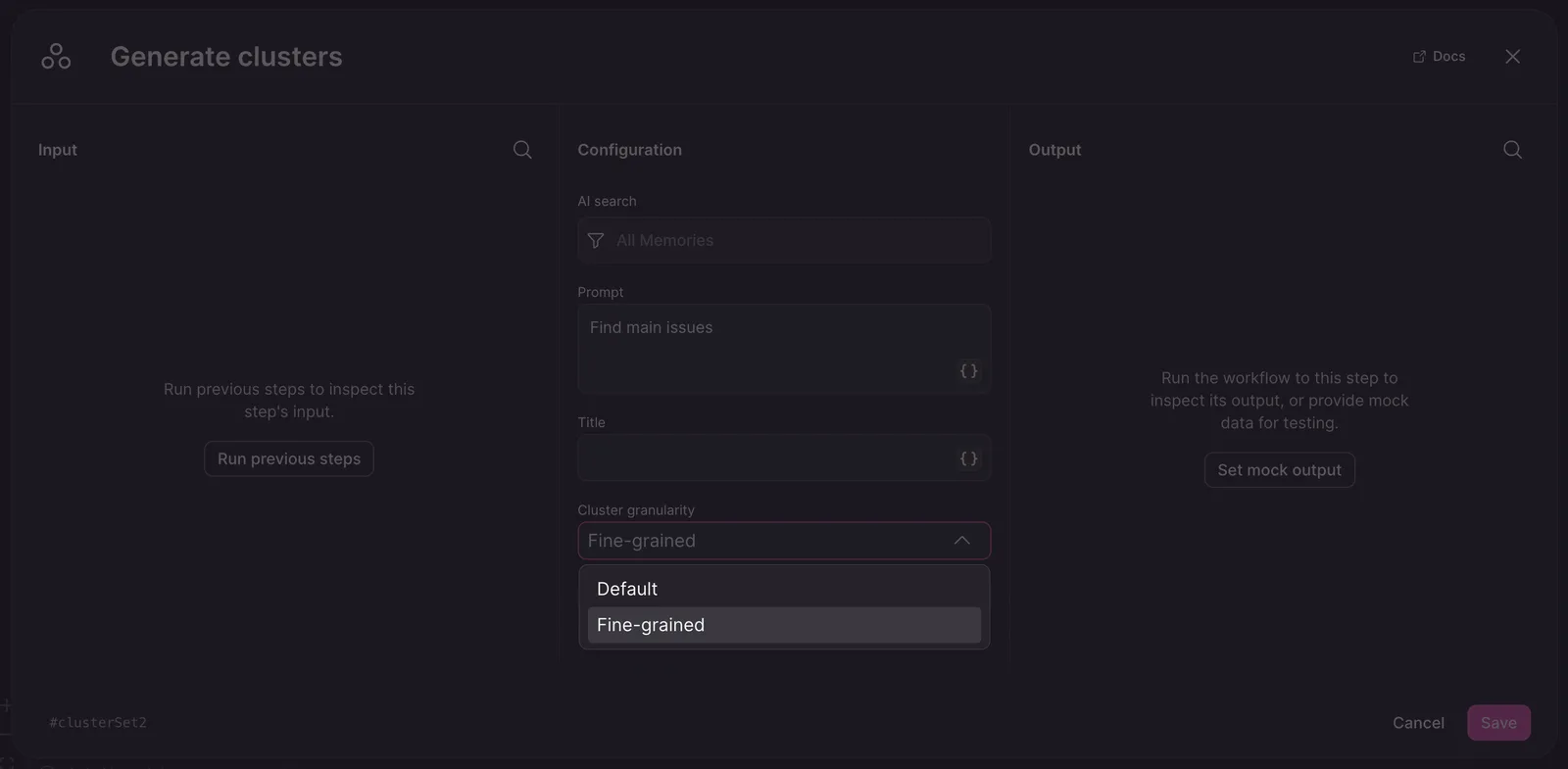
You can now choose Fine-grained cluster granularity in a workflow’s clustering step to generate more, smaller clusters for detailed analysis. Leave the setting at Default to keep the existing clustering behavior.
How to use:
- Add or open a clustering step in your workflow.
- Open Advanced settings.
- Choose Fine-grained under Cluster granularity and save the step.
Learn more about workflows.