Test workflows safely, reusable clustering + 2 more
Turn groups of memories into structured clusters in a workflow
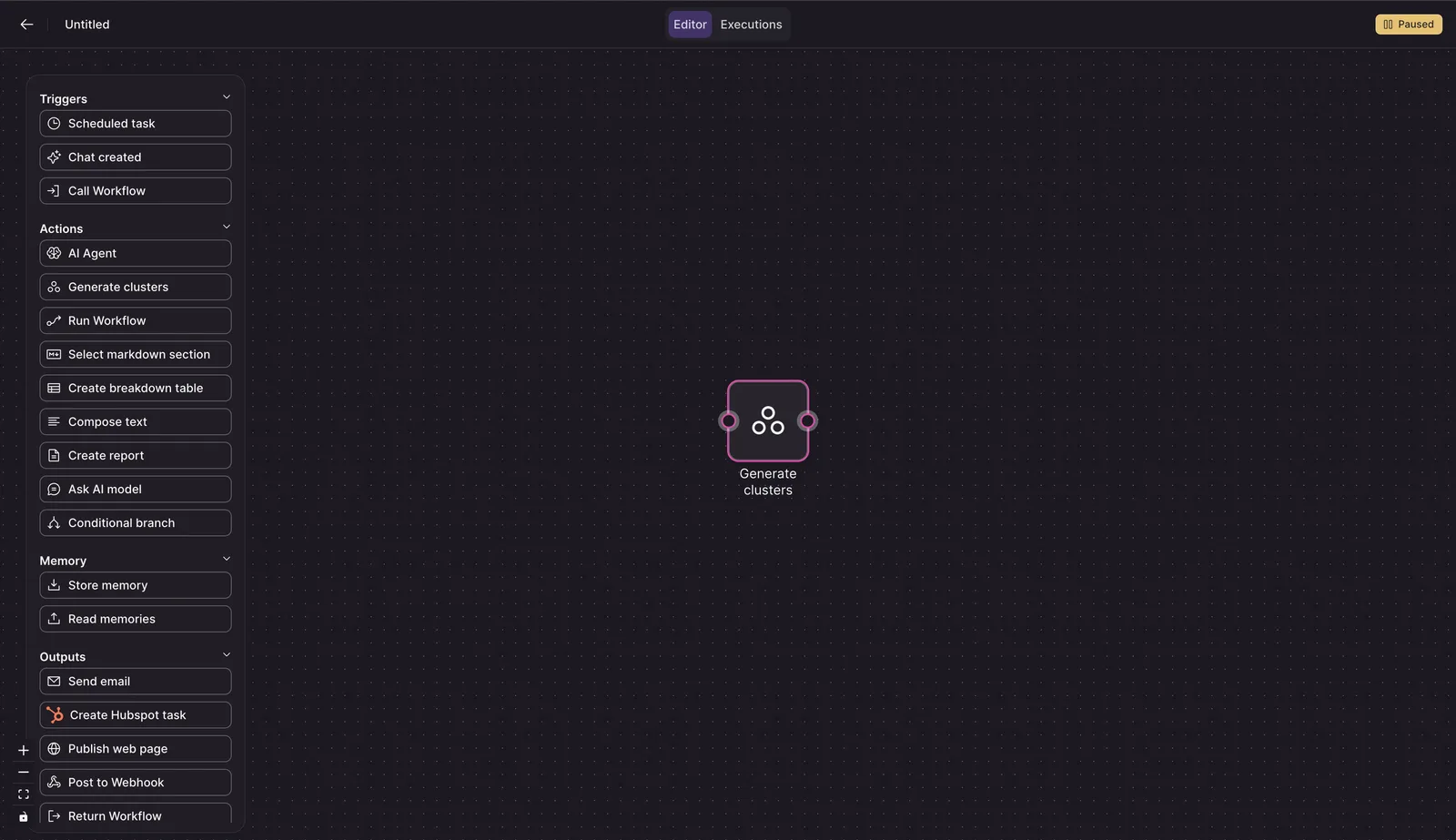
The new Generate clusters workflow step lets you select a memory source and provide clustering instructions without adding a "AI Agent" query. It returns a Cluster Set and structured cluster details—including IDs, titles, descriptions, and counts—so later workflow steps can use individual clusters directly instead of extracting them from generated text.
How to use:
- Open a workflow and add a Generate clusters step.
- Select the memory source to analyze and provide clustering instructions.
- Use the Cluster Set and cluster details returned by the step in later workflow steps.
Learn more about workflows.
Test downstream workflow logic without running every step
You can now set mock JSON output for any workflow step, allowing downstream steps to use sample data instead of executing the original step. This makes it safer to test mappings, conditions, and payloads without triggering external actions.
How to use:
- Open the workflow step whose execution you want to replace during testing.
- In the step’s output area, select Set mock output.
- Enter sample JSON data, then run the workflow to test subsequent steps with that output.

Learn more about workflows.
Scan larger workflows and find step variables with less clutter
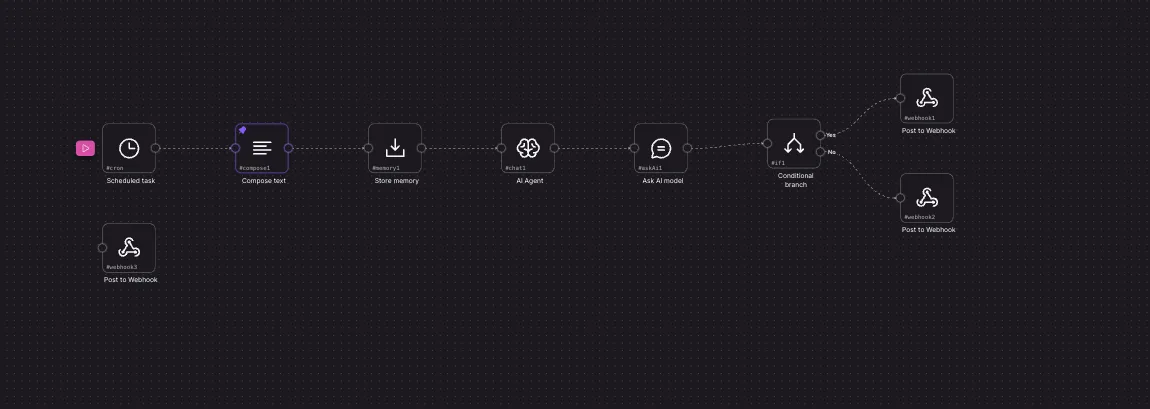
Workflow steps now use a compact canvas design that shows each step’s icon and title, helping you see more of an automation without excessive scrolling. When configuring a step, input-variable groups use step icons and clearer names, while input and output search stays compact until you need it, leaving more space to browse available data.
How to use:
- Open a workflow to review its structure from the compact canvas.
- Select a step to view its full configuration.
- Browse input or output variables, or expand search when you need to find a specific value.
Learn more about workflows.
Trace a memory back to the evidence that created it
Memories now make their supporting evidence easier to inspect and revisit. Memory references in descriptions appear as numbered, clickable annotations instead of raw markers, while memories built from a query show the saved evidence filters and let you open the matching evidence memories. Evidence created from relative timeframes is also preserved as the original date range, so later follow-up questions remain grounded in the same data.
How to use:
- Open a memory in the Memory Library
- Review its Evidence section.
Learn more about memory evidence.