Custom workflow logic, approval gates + 2 more
Add custom logic to workflows without relying on external tools
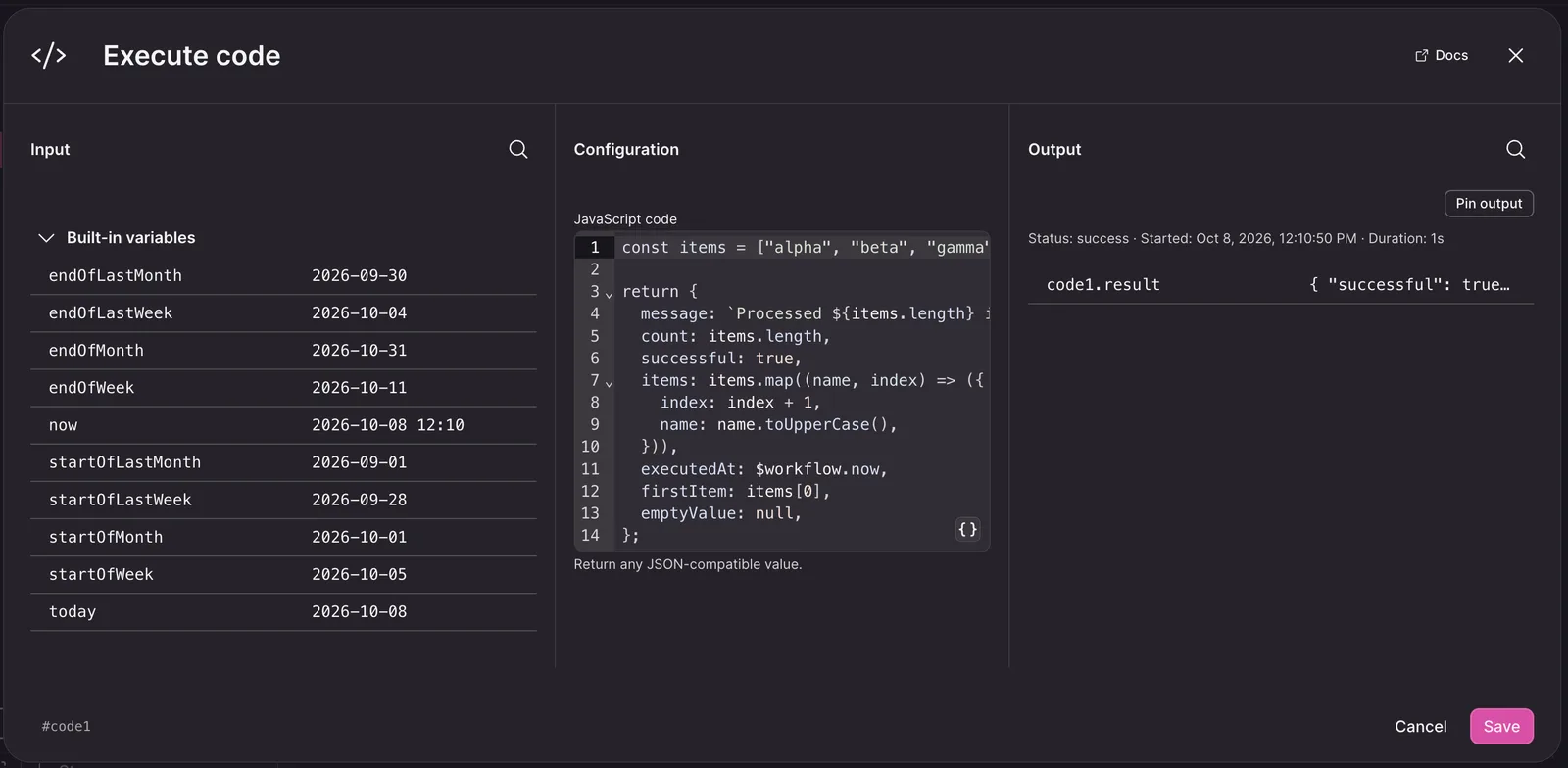
You can now use a Code step to handle workflow logic that is clearer or more reliable as code, such as normalizing responses, calculating scores, or filtering items. Write small functions in the built-in editor, use variables and outputs from earlier steps, and return structured values for later steps to use.
How to use:
- Open a workflow and add a Code step.
- Write the logic using workflow variables or outputs from previous steps.
- Return the values you want later steps to use.
Learn more about workflows.
Review workflow reports before they are delivered
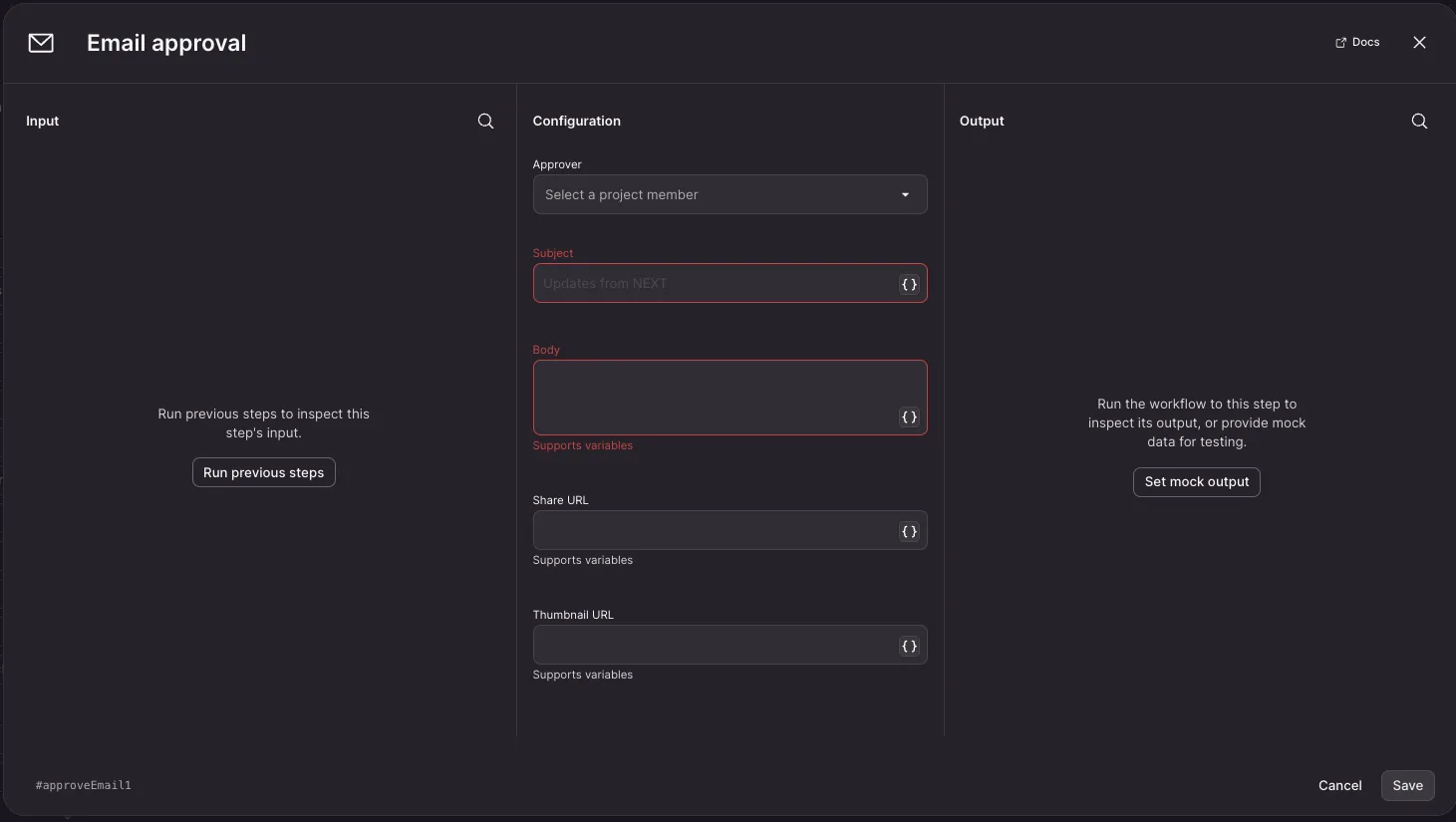
You can add a human review step before a workflow sends a report, giving reviewers control over what is delivered without requiring them to forward the report manually. The new Email approval step sends the reviewer an email with the report: approving it resumes the workflow and sends the report, while declining it stops delivery.
How to use:
- Add an Email approval step before the step that sends your report.
- Choose the reviewer and configure the report content for the approval email.
- The reviewer selects Approve to continue the workflow or Decline to stop it.
Learn more about workflows.
Get chat results that follow the sources and formats you select
Chat now treats your explicit selections as part of your request, so you can rely on the context and output options you choose without repeating them in your prompt. For example, starting a chat from a selected record and asking “Summarize” uses that record, while selecting Podcast produces a podcast; enabled data sources and tools, including web search, are used for the answer.
How to use:
- Select a record, survey, data source, or output format before starting chat.
- Enter your request without restating the selections you already made.
- NEXT uses the selected sources and output options when generating the response.
Learn more about chat data sources.
Test and edit large workflows with less repetitive work
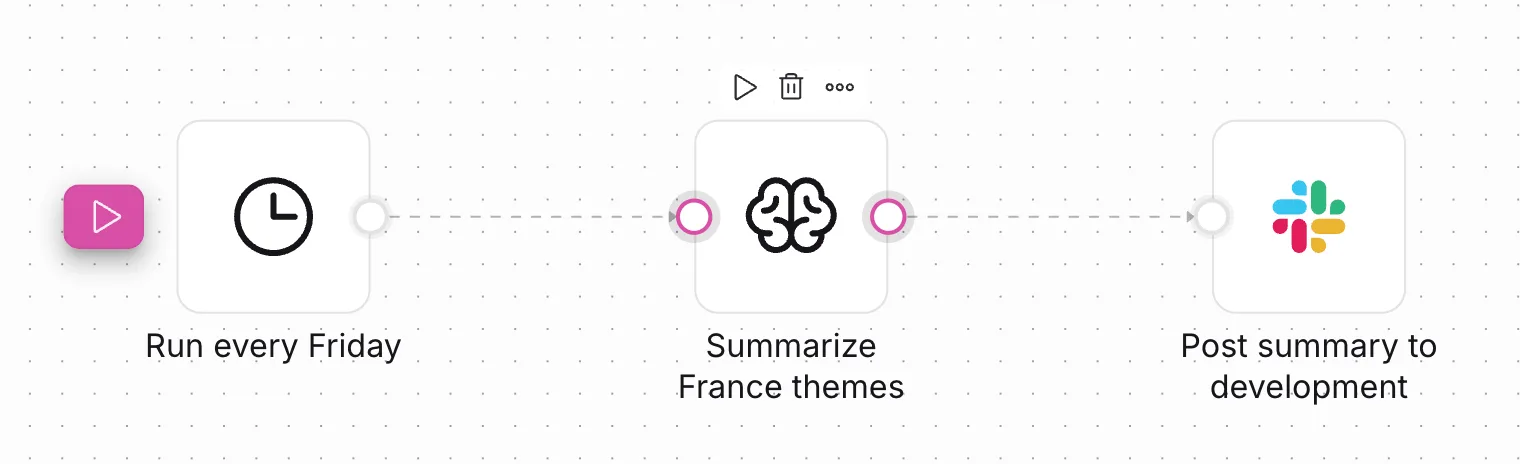
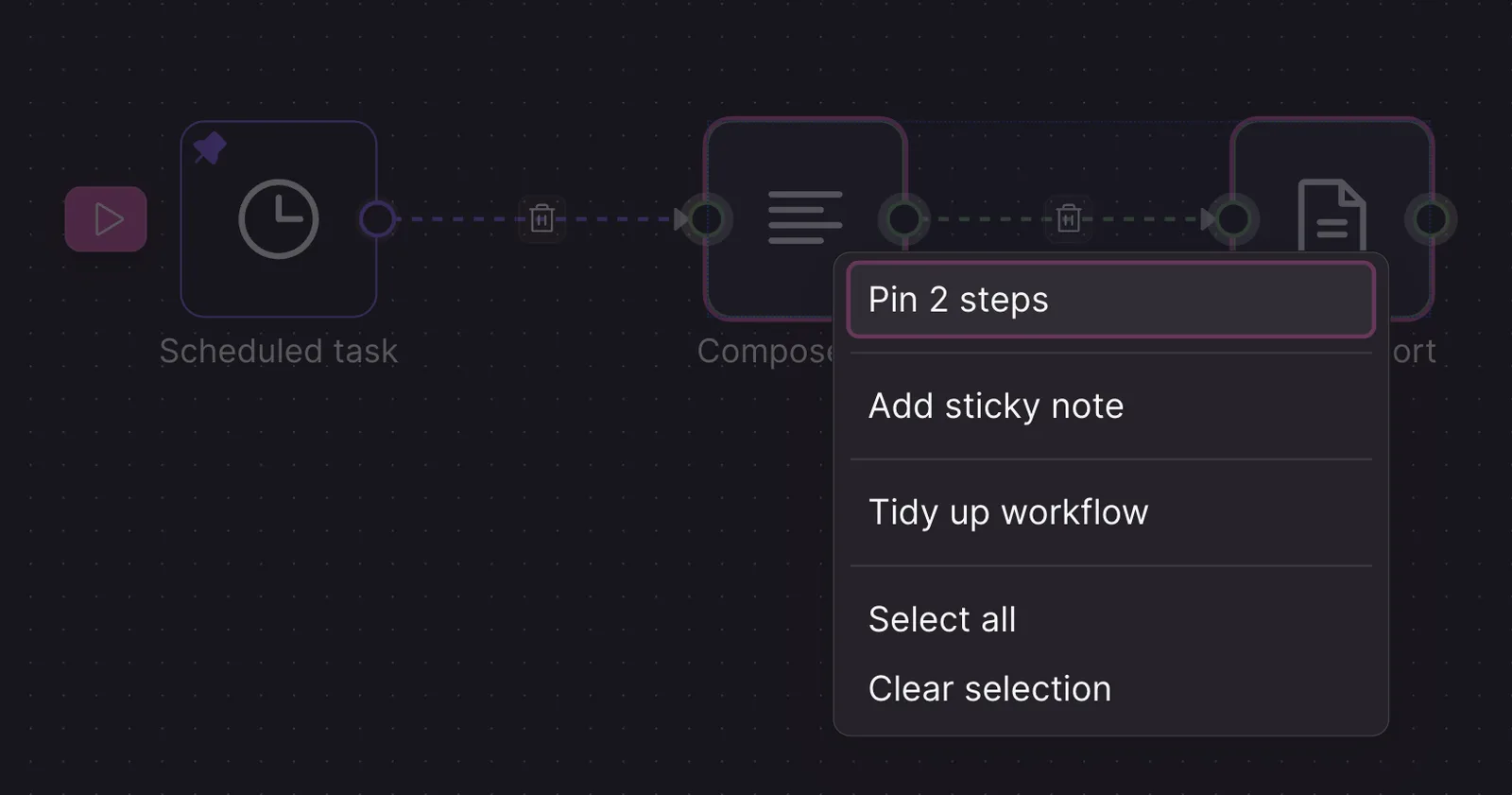
Workflow controls are easier to reach because each step’s action icons now appear above its logo, while the compact canvas still lets you see more of your workflow at once. You can also select multiple steps and pin all of their existing outputs together, so downstream changes can be tested without rerunning slow upstream steps.
How to use:
- Open a workflow and use the action icons above a step logo when you need to manage that step.
- Select the steps whose outputs you want to reuse during testing.
- Right-click the selection and choose Pin outputs for selected.
- Run the workflow to test later steps with the pinned values.
Learn more about workflows.