Automatic chat breakdowns, clearer workflow controls + 2 more
Start, monitor, and stop workflow runs from the canvas
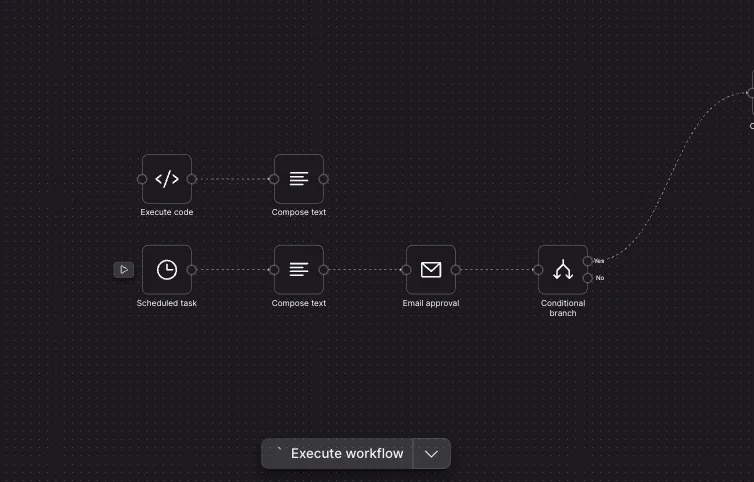
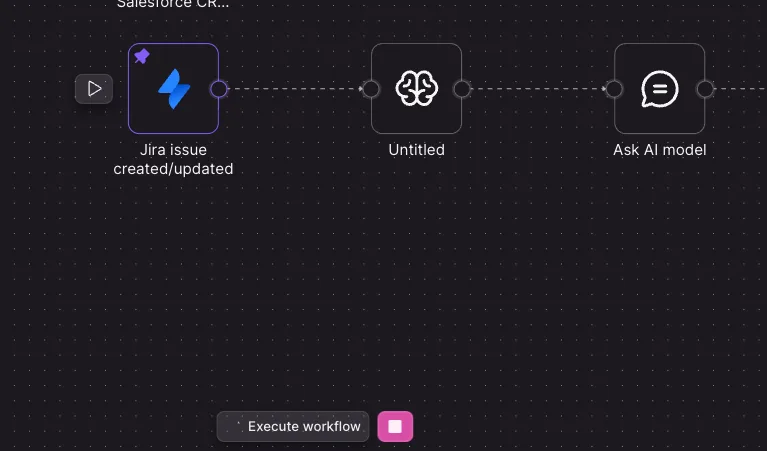
Workflow execution controls now provide immediate feedback when you start a run and remain available on the editor canvas, helping you avoid uncertainty or accidental duplicate runs. You can also stop an active execution from the UI when a test run is no longer needed or a workflow is waiting too long; stopped runs are marked in run history and no further steps begin.
How to use:
- Open a workflow in the editor and select Run from the control bar at the bottom of the canvas.
- Watch the loading and execution state from the same controls.
- Select Stop to cancel an active run when needed.
Learn more about workflows.
Get clusters without explicit cluster mode
Chat can now automatically create clusters when you ask for a grouped analysis and there is enough data, so you can get grounded summaries and counts by segment, company size, or another group without preparing clusters in advance. This works in Default, Podcast, and Presentation modes; for requests without a breakdown or smaller datasets, chat responds normally.
How to use:
- Start a chat in Default, Podcast, or Presentation mode.
- Ask for a grouped view, such as “summarize insights per segment” or “group findings by SMB/MM/Enterprise.”
- Review the grouped summaries and counts returned by chat.
Learn more about chat quantification.
Use local variables when formatting workflow content
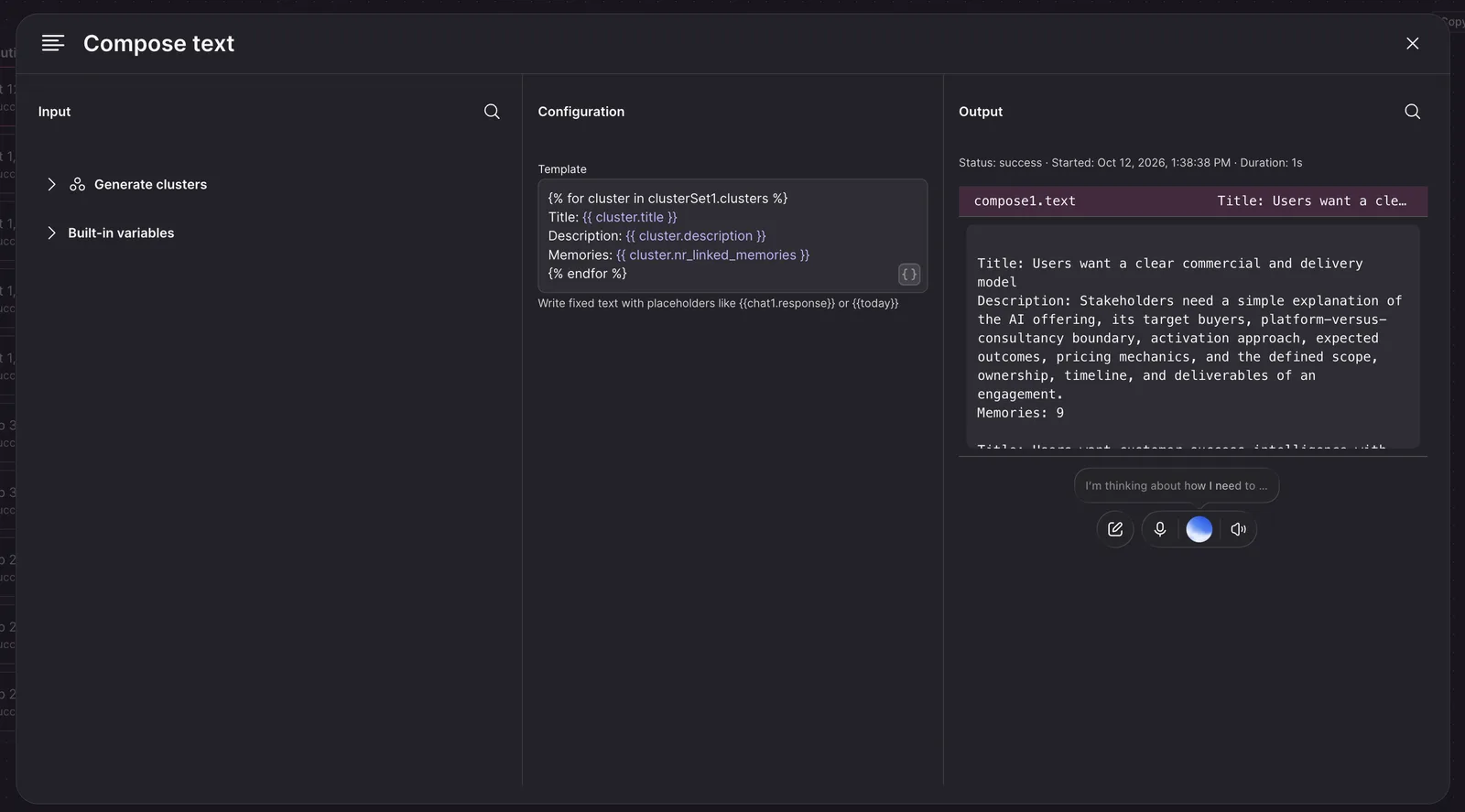
You can now save workflow templates that use local variables in Liquid loops and assignments, making it easier to format repeated data such as cluster summaries in generated reports. The editor continues to flag invalid or disconnected workflow references while allowing variables defined within your template.
How to use:
- Open a workflow step that uses a Liquid template, such as a text-composition step.
- Use local variables in your Liquid loops or assignments to format the workflow data.
- Save the template and use its output in later workflow steps.
Learn more about workflows.
Find every workflow in your teamspace from the overview
The workflow overview now shows all workflows in your teamspace, including active and paused workflows, so you can find and manage your automations without relying on a saved direct link.
How to use:
- Open the workflow overview in your teamspace.
- Browse the complete list to find the workflow you want to open or manage.
Learn more about workflow overview.