Compare clusters in workflows, structured AI outputs + 2 more
Compare each cluster across the dimension that matters
You can now retrieve a cluster set’s breakdown for a specific tag group in a workflow, making it easier to analyze how themes are distributed across dimensions such as country or segment without creating separate cluster sets. The new Get cluster breakdowns step returns the selected dimension’s data for each cluster so you can reuse it in analysis, scoring, or reporting steps.
How to use:
- Add a Get cluster breakdowns step after the step that provides your cluster set.
- Select the cluster set and the tag group you want to use as the breakdown dimension.
- Use the returned breakdown data in later workflow steps.

Learn more about workflows.
Use AI-generated data directly in later workflow steps
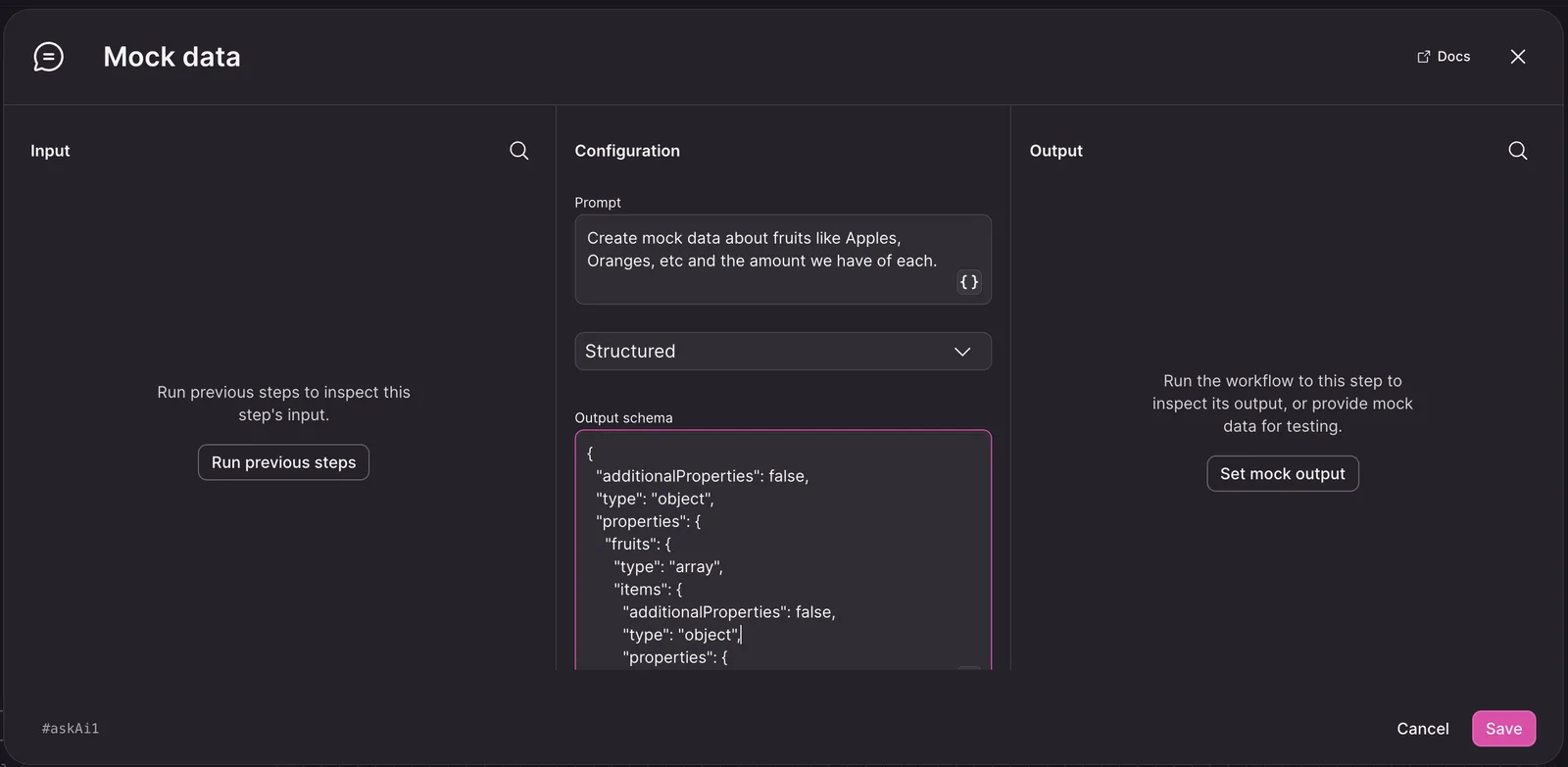
The Ask AI step can now return validated structured data from a JSON Schema, helping you use AI-generated fields in templates and downstream steps without asking for JSON in a prompt and parsing text in a separate code step. Define the fields, types, required properties, descriptions, and nested objects you need, then use the structured result in your workflow.
How to use:
- Add or open an Ask AI step in a workflow.
- Choose the structured output option.
- Define the expected JSON Schema in the editor.
- Use the step’s structured output in a later workflow step or Liquid template.
Learn more about workflows.
Restore a working workflow version without rebuilding it
You can now return a workflow to the exact configuration used in an earlier execution, so you can quickly undo changes that caused an issue instead of recreating a working setup by hand. Open a previous execution and restore its version when you need to recover a known-good workflow configuration.
How to use:
- Open the workflow and view its execution history.
- Open the earlier execution whose configuration you want to restore.
- Select Restore version.

Learn more about workflows.
Keep approval workflows moving when a reviewer is away
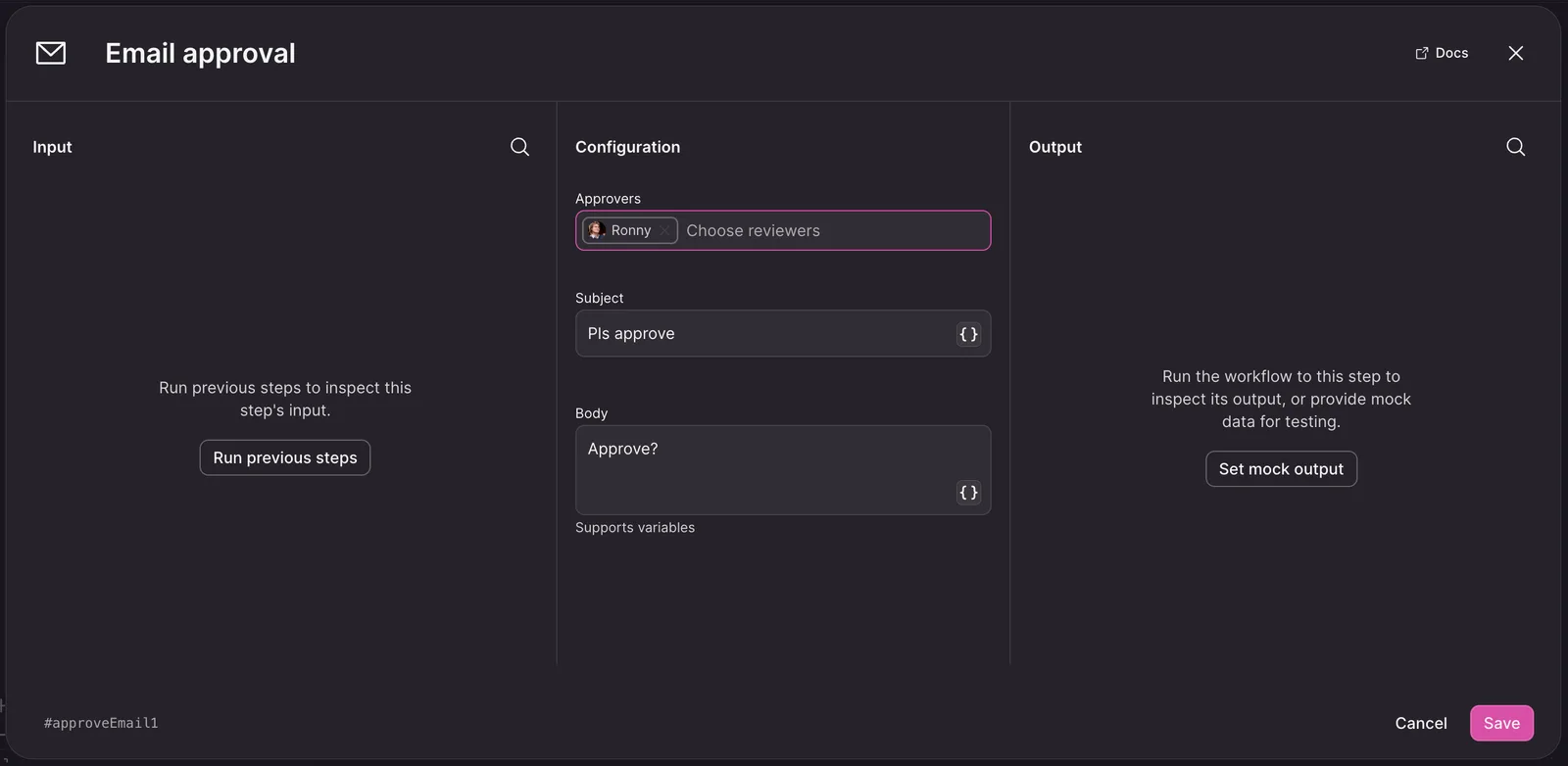
You can now assign multiple approvers to an email approval step, reducing delays when one reviewer is unavailable. Every selected approver receives the same request, and the first decision determines the result: an approval continues the workflow, while a rejection stops it.
How to use:
- Open an Email approval step in your workflow.
- Select all people who should be able to review the request.
- Save the step and run the workflow when it is ready for approval.
Learn more about workflows.