NEXT AI MCP Server
Installation
-
Create a new API token in NEXT
-
Run the NEXT Agent installer (Claude Code, Codex, Cursor, Antigravity, etc):
npx @nextappco/agent setupThe installer detects supported AI agents such as Claude Code, Codex, Cursor, and Antigravity, and configures the NEXT MCP server and Agent Skill. When prompted, provide the API token created above.
-
Restart your AI agent if it is already running
Teamspace API tokens are scoped to one teamspace. The MCP server cannot read or change configuration in another teamspace. Create separate tokens for a different teamspace, and run the NEXT Agent installer again.
Transport and protocol support
The hosted MCP server is available at:
https://mcp.eu-west-1.nextapp.co/stream
It is delivered through AWS API Gateway’s streaming HTTP interface:
- Clients must support HTTP response streaming to consume results progressively.
- Server-Sent Events (SSE) are not available from the hosted endpoint.
Client integration checklist
- Start with
tools/list: Every session should begin by invoking thetools/listtool. The hosted MCP server exposes capabilities based on your teamspace configuration, and listing tools ensures the client knows which operations are currently available. - Secure tokens: Store teamspace API tokens safely. They carry the same access that your teamspace provides and should be treated like any other credential.
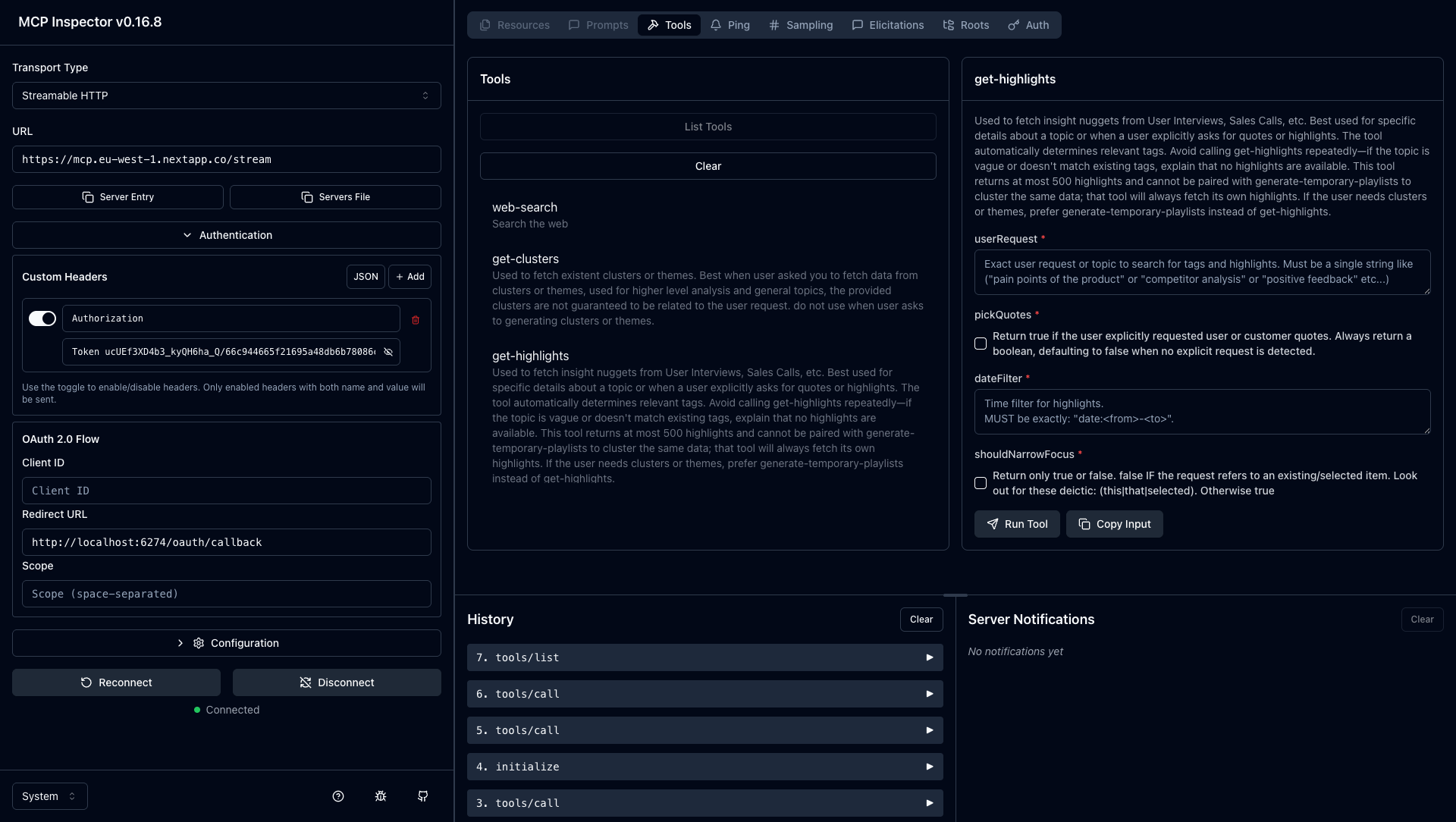
- Test setup: Use the official MCP Inspector to validate connections, list available tools, and run test calls before integrating into production workflows.
FAQ
Q: What is MCP?
MCP stands for Model Context Protocol. MCP is an open standard that give AI agents (eg. Cursor code editor) a consistent way to connect with tools, services, and data no matter where they live or how they're built.
Q: What is an MCP Server?
An MCP server is a program hosted on a server or in the cloud that exposes capabilities for AI agents to use via MCP. MCP servers can provide AI agents with access to new data sets or other tools that they need.
Q: Is my data secure?
Yes. All traffic is encrypted via HTTPS, and tokens scope access to a single teamspace. Only data from the teamspace linked to your token is accessible.
Q: Are all NEXT features available via the MCP server?
The MCP server is the same component that powers chats in the NEXT UI, where it can use the full set of capabilities.
However, the public MCP interface exposes only a subset of this functionality - focused on what delivers value in third-party chat clients such as Claude. In practice, this means mainly data retrieval tools, e.g. searching memories.
Two key limitations apply:
- Execution time: Requests are typically capped at ~30 seconds, so long-running operations (e.g. dynamic cluster generation) are not supported.
- Tool scope: Only NEXT-specific capabilities are exposed. Generic capabilities (e.g. CSV generation) are not included, as they are typically handled by the client (e.g. Claude).
Q: Do I need to update the server myself?
No. The hosted MCP server is maintained by NEXT and always runs the latest version. If you self-host the open-source server, you’ll need to keep it up to date manually.
Q: How do I install the NEXT MCP server in Claude Desktop?
Claude Desktop currently does not support setting a custom Authorization header for remote MCP servers. Because the hosted NEXT MCP server requires an Authorization: Bearer ... header, the normal remote connector setup in Claude Desktop will not work here.
Until Claude Desktop support this, you can use mcp-remote in your Claude Desktop config file. mcp-remote runs as a local command on your machine and proxies requests to the hosted NEXT MCP endpoint, which makes the remote server appear to Claude Desktop like a local MCP server while still letting you attach the required Authorization header.
In claude_desktop_config.json, add an MCP server entry like this:
{
  "mcpServers": {
    "next-mcp": {
      "command": "npx",
      "args": [
        "-y",
        "mcp-remote",
        "https://mcp.eu-west-1.nextapp.co/stream",
        "--header",
        "Authorization: Bearer YOUR_TOKEN",
        "--header",
        "X-MCP-Client: claude"
      ]
    }
  }
}
Replace YOUR_TOKEN with your NEXT teamspace API token. You can learn more about mcp-remote in the package GitHub repository.
Also note that Claude may behave differently from other MCP clients when tools return structured content. For example, Anthropic has an open issue where Claude Code may ignore structuredContent entirely: anthropics/claude-code#4427. Since all NEXT tools return structured content, this can lead to weaker or less reliable results in Claude compared to MCP clients that properly consume structured outputs.
Q: Can I connect from clients that don't support Authorization headers?
Some services don’t yet allow setting a custom Authorization header. Since our hosted MCP server requires an Authorization: Bearer ... header, those services cannot connect directly. In that case, you need to use a client that supports custom headers, use a local proxy such as mcp-remote, or self-host the MCP server.